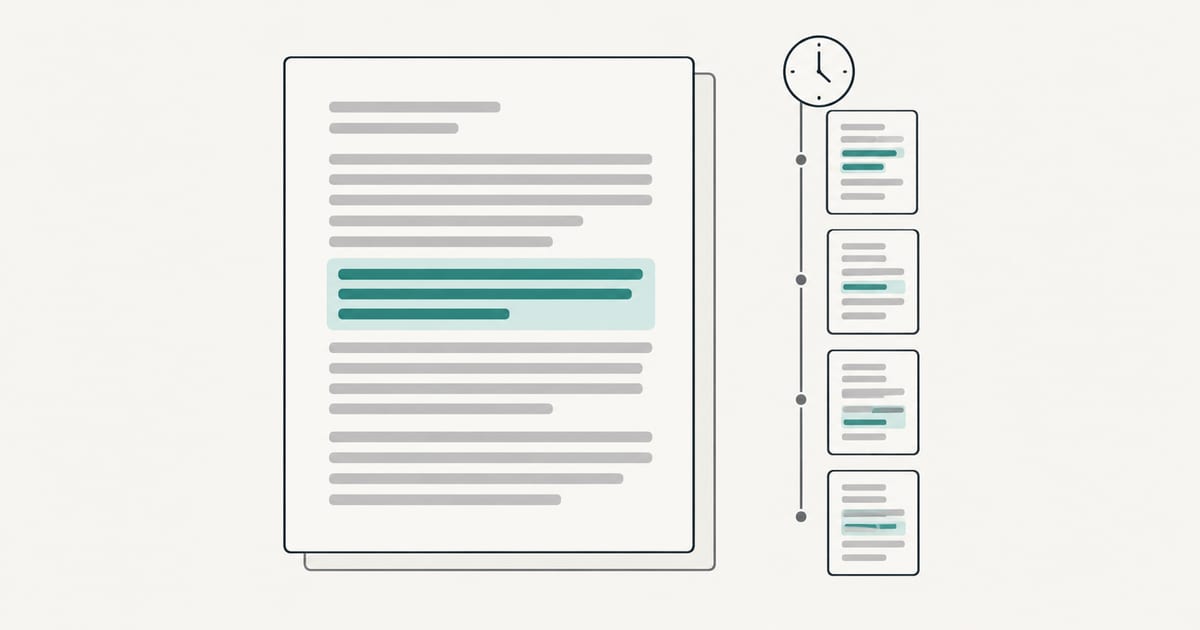
Google Docs does not have a built-in AI detector that we could find in Google’s help pages. What it has are three different things people often mistake for one: version history, which records who edited a document and when; originality reports in Google Classroom, which match text against web pages and books; and SynthID, a watermark that Google adds to text made by its own AI models. None of them tells you reliably whether a person or a chatbot wrote a given paragraph.
Key takeaways
- Google’s help article on version history describes who edited and when, named versions and restoring earlier versions. It does not mention AI detection.
- Google Classroom originality reports compare student files with web pages and books. Google’s help page does not mention AI-generated text.
- SynthID Text can detect a watermark in text from models that use it, such as Google’s. It does not detect AI text in general, and Google says confidence drops after heavy rewriting or translation.
- A document’s edit history is stronger evidence of how it was written than any score, but it can be missing or misread, and it is not proof either way.
Is there an AI detector inside Google Docs?
We found none. We read Google’s help article on version history and the originality reports page for Classroom, and neither describes an AI-writing detector. Google’s newer Classroom announcements in 2026 are about teaching help, such as Gemini suggesting draft feedback for teachers, and a Writing Coach for students, not a tool that labels a student’s text as machine-written.
Absence from the help pages is not a guarantee, because Google updates products often, and some Workspace for Education editions have extra features. If your school asks you to use or avoid something, check with its administrator. But a student or teacher should not assume that Docs quietly scores writing for AI. As far as the documentation shows, it does not.
What does Google Docs version history show?
Version history is the feature closest to what people are looking for, and it works differently from a detector. Per Google’s help article, which we read on 2026-10-27, it lets you:
- See who last edited a file and when, and open an earlier version to see who made each change.
- Name versions, so they are kept separate. Documents allow up to 40 named versions.
- Restore or copy an earlier version.
Two limits matter. Browsing earlier versions requires edit permission on the file, and owners can permanently delete older versions. A feature that shows which editor changed which part of a document is limited to certain Workspace plans, including Education Plus.
What it can tell you is the shape of the work: a document built up over several sessions, with text appearing, being rearranged and revised, looks different from one that arrives in a single large paste. What it cannot tell you is whether a person or a tool produced any of it. Someone can type text out from a chatbot. Someone can write in another app and paste it in. A document can have a thin history for innocent reasons, such as drafting offline or in a text editor.
That is why history is best read as context for a conversation, not as a verdict. Our guide on what to do when an AI detector flags student writing shows where drafting history fits among other evidence.
What do Google Classroom originality reports check?
Originality reports are a plagiarism-matching feature, available for Google Workspace for Education accounts. Google’s support page says they check student Google Docs, Slides and Word files against all pages accessible by Google Search and Google Books, and also against scholarly journals available through Search. Where an administrator enables school matches, and the edition supports it, they also check earlier submissions from the same school or district. The page lists 25 supported languages.
The page does not mention AI-generated text, so it is a source-matching tool, much like the one we describe in does SafeAssign check for AI. It answers “does this wording appear elsewhere?” and not “who wrote it?” For the difference between the two kinds of tool, see AI detector vs plagiarism checker.
What is SynthID, and does it detect AI writing?
SynthID is where Google does have something that detects AI text, but it works in a narrow way. It is a watermark, not a general classifier.
Google’s developer documentation explains that SynthID Text adjusts the probabilities a model uses when it picks each next word, so that the generated text carries a statistical signature. A detector then scores text for that signature. The result is probabilistic: watermarked, not watermarked, or uncertain.
Google’s own notes list limits:
- It is less effective on factual responses, because there is less room to vary the wording.
- Detector confidence can drop sharply when the text is heavily rewritten or translated.
- It is not designed to stop determined misuse.
- Who can run the detector depends on the developer: it can be private, available through an API, or public.
In May 2025 Google announced a SynthID Detector portal for checking content made with its AI tools. The announcement said it would cover images, audio, video and text, with a footnote that video and text detection would be added in the coming weeks, and that access began with early testers on a waitlist. We could not confirm from Google’s pages what the portal supports for text today, so check Google’s current page before relying on it.
The more important point is what SynthID cannot do. It can only recognize text from models that apply the watermark. It does not detect writing from other chatbots, and it does not label a human-written passage. A document with no SynthID signal could have come from any other system, or from a person. And no tool inside Docs applies it to a student’s essay and reports the result.
For image and video watermarks, see can metadata detect AI images and how AI video detection works.
Is Gemini in Docs related to detection?
Gemini in Docs is a writing assistant. It can draft, rewrite and summarize text inside a document. It is not a detector, and asking a chatbot “did AI write this?” does not produce a reliable answer, because a language model has no record of what wrote a piece of text. Such answers can be confident and wrong, and no one should treat them as evidence.
If a school allows Gemini or another assistant, the honest approach is disclosure, not guessing after the fact. Some courses allow AI for brainstorming but not drafting. Others allow neither. Check the policy for each assignment.
What can teachers use instead?
If you need to review a Google Docs submission, you have several things to look at that are better than a score:
- Version history, to see whether the document developed over time. Ask students to share edit access if your policy requires it, and say so before the work is due.
- Earlier work, to compare voice, vocabulary and mistakes.
- Sources, checking that citations exist and say what the paper claims.
- A conversation, asking the student to explain their choices and terms in their own words.
- A separate detector, if your school allows one, used as a signal to review, not as proof.
Detectors produce false positives on writing by non-native English speakers, and on short, formal or templated text. The evidence is in AI detection false positives in student writing, and the wider picture is in how accurate AI detectors are. For tools teachers actually meet, see which AI detector teachers use. To judge any detector you do use, see the most reliable AI detector for teachers.
What should students do?
Write in the document you will submit, so its history shows the real process. Do not paste in finished text from elsewhere if the course expects original drafting, and do not delete your history to tidy up. If you used AI in a way the course allows, say so. If your work is ever flagged by any tool, keep your drafts and version history, ask what the concern rests on, and use your school’s process. Why does my writing show as AI explains how false flags happen.
Can I check text from Google Docs with an AI detector?
Yes. Copy the text out and use an external tool. Our AI-generated text detector accepts pasted text of 50 words or more, or an uploaded .docx or PDF file, and shows which passages a classifier flags. Treat the result as a signal to read more closely, not as a pass or fail grade. The text is sent to Pangram Labs for analysis, and checking your own text requires a free account. Our methodology page lists what a result does and does not mean.
Frequently asked questions
Does Google Docs have a built-in AI checker? We found no AI detector in Google’s help pages for Docs or Classroom. Docs has version history, and Classroom has originality reports that match text against web sources, but neither judges whether text resembles AI writing.
Can my teacher see if I used AI in Google Docs? Not through an AI score in Docs. A teacher with edit access can see version history, which shows when and how the text was added. That can raise questions, such as a whole essay appearing at once, but it does not show whether AI was used.
Does Google Docs detect copy and paste? Version history records changes to the document over time, so a large block of text appearing at once can be visible. It does not label the text’s source, and the same pattern can come from pasting your own notes.
Does Google Classroom check for plagiarism? Yes, where a school turns on originality reports. They compare submissions with web pages, books and, with the right edition, earlier school submissions. They do not check for AI.
Can SynthID tell me if text came from ChatGPT? No. SynthID Text is a watermark applied by the developer of a model that uses it. It can only recognize its own signature, so it says nothing about text from systems that do not apply it.
Is a detector result enough to accuse a student? No. A detector result is a reason to look closer. Review the highlighted passages, compare earlier work, check sources and ask the student to explain, and follow your school’s process.
Sources and how current they are
- Google Docs Editors Help: See the changes made to a file, read 2026-10-27.
- Google Classroom Help: How an originality report is created, read 2026-10-27.
- Google AI for Developers: SynthID Text documentation, read 2026-10-27.
- Google: SynthID Detector announcement, dated 2025-05-20, read 2026-10-27.
We did not test any of these Google features ourselves, and Google changes its products often. Your school’s administrator can say what is enabled for your account.